
Cropping requires Cliparr 3.1 or later. On a phone, choose Crop in the bottom action bar. On desktop, choose Crop beside the screenshot button, or expand Crop in the Properties sidebar.
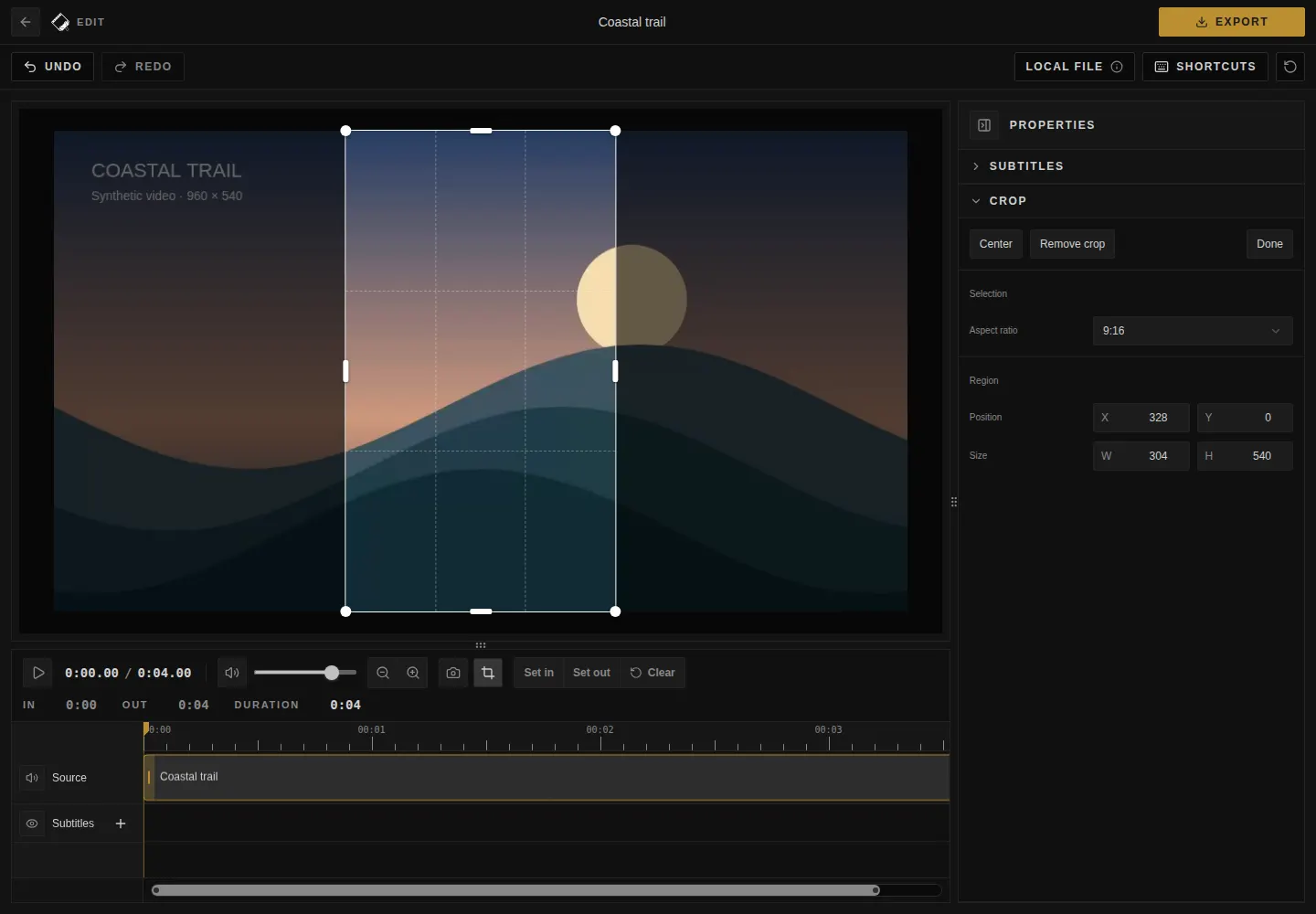
- Done keeps the crop and returns to the preview. Remove crop restores the full picture. Reopen the tool to edit at any time.
- Choose Free, an aspect-ratio preset, or Custom (width ÷ height). Position and size use source pixels.
- On phones, settings appear below the preview, and the timeline is hidden while cropping to give the picture more room. Done returns to the workspace; choose Subtitles in the bottom action bar to review or edit captions. Small selections hide side handles to keep touch targets separate; use corners or numeric fields.
- Crops support undo/redo, are saved in drafts, and apply to video, GIF, and screenshots. Captions are positioned within the cropped picture.
The native export size is labeled Cropped. Cropped video re-encodes even at Sharp quality. See output sizing and crop shortcuts.