
Export your clip as video, audio, or a GIF. After choosing a clip range, open the export dialog to review the format, output settings, and estimated size before downloading. Exports are processed in your browser.
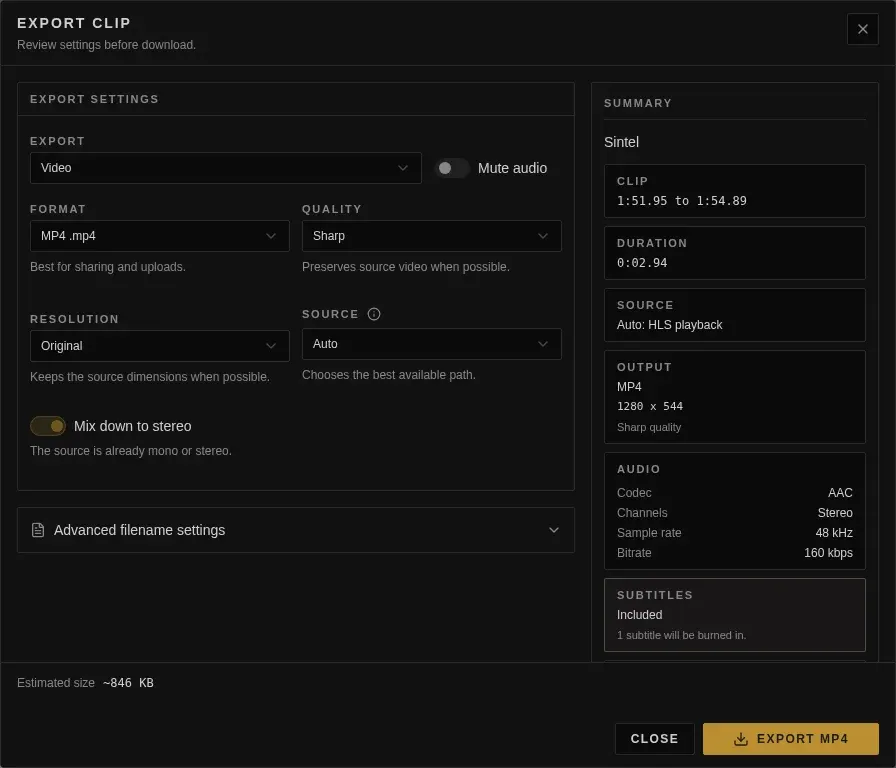
Export mode
Choose Video (default), Audio, or GIF. Video includes sound unless you enable Mute audio beside the dropdown. Audio hides the mute toggle and video quality, resolution, and subtitle controls. GIF shows quality and the resolved output dimensions without a format selector or audio controls. Video and audio formats, video mute and resolution, and separate video/GIF quality preferences are remembered while the editor is open.
Format
| Format | Best for |
|---|---|
MP4 |
Sharing, uploads, and general compatibility. |
WEBM |
Efficient web playback. |
MOV |
Editing workflows that prefer QuickTime-style containers. |
MKV |
Flexible container support. |
Codec availability depends on the browser and source media. If an export cannot keep the selected audio or video track in the chosen container, Cliparr stops the export and shows the reason instead of silently dropping important media.
Use WEBM instead of GIF when your destination supports video files. GIF is useful for compatibility with older platforms, but it has no audio, is capped at 15 seconds, and usually much larger than a modern video export.
Audio defaults to MP3 and groups its formats by compression:
| Format | Best for |
|---|---|
| MP3 | Broad compatibility and sharing. |
| M4A / AAC | Efficient audio and editing. |
| Ogg / Opus | Compact, high-quality audio. |
| FLAC | Compressed lossless audio, 16 or 24 bit. |
| WAV | Uncompressed audio for editing. |
If a FLAC export fails because the selected clip is too short or ends at an unsupported point, choose WAV or adjust the clip’s start or end time.
Some standalone FLAC files have an ending that Cliparr cannot read. If an error reports missing source audio, shorten the selection to end before that point. Choosing a different output format will not recover the missing audio. This limitation does not apply to FLAC audio inside MP4, MKV, or HLS sources.
Audio settings are chosen automatically. Review the summary for the codec, channels, sample rate, and bitrate or bit depth. FLAC and WAV choose the bit depth automatically and preserve the source sample rate. Use the info button beside Bit depth to learn how the value is chosen. If the source’s precision cannot be preserved in FLAC, use WAV.
Quality
The Quality control is available for video and GIF exports. Video exports use
Compact, Balanced, and Sharp; GIF exports also include Efficient for a
smaller tuned animated-image preset.
| Quality | Video behavior | GIF behavior |
|---|---|---|
Compact |
Forces a smaller, lower-bitrate transcode. | 360p max, 10 fps, 64 colors. |
Efficient |
Not shown for video exports. | 432p max, 12 fps, 128 colors with soft spatial and temporal dithering. |
Balanced |
Forces a moderate-bitrate transcode for a smaller file than Sharp. |
480p max, 12 fps, 128 colors with soft spatial and temporal dithering. |
Sharp |
Preserves the source stream when possible, or uses the highest current default. | 720p max, 18 fps, 128 colors with soft spatial and temporal dithering. |
For video, Sharp is the safest choice when you want the closest match to the source. Use Balanced or Compact when file size matters more than preserving the original stream. For GIF, Balanced is the default because it preserves readable motion and detail. Choose Efficient when Balanced is slightly too large, or Compact when file size matters most. Sharp keeps the same tuned 128-color temporal dither but spends the file-size budget on higher resolution and smoother motion.
GIF clips longer than 15 seconds are blocked before export starts. Trim the range or choose WEBM for longer animated clips.
Resolution
| Resolution | Behavior |
|---|---|
Original |
Keeps the source dimensions when possible. |
1080p |
Scales the output to 1080 pixels tall while preserving aspect ratio. |
720p |
Scales the output to 720 pixels tall while preserving aspect ratio. |
Use Original when you want the closest match to the source. Use 1080p or 720p when you want a smaller export for sharing or faster downloads.
GIF dimensions follow the quality preset’s maximum height and preserve the source aspect ratio. Smaller sources keep their original dimensions. The GIF settings show the resolved dimensions instead of a resolution dropdown.
Source
When a media server offers both the original file and a playback stream, you can choose which one to use for export.
| Source | Behavior |
|---|---|
Auto |
Chooses the best available path. It can use a direct fallback when HLS playback is not export-friendly. |
Direct/original |
Uses provider direct media, a local file, or a direct media URL when available. |
HLS playback |
Uses the playback stream. This is useful when the playback stream is the only available export source. |
For most clips, leave source on Auto. Choose a specific source when troubleshooting an export or when you intentionally want the playback stream rather than direct media.
Audio
Mix down to stereo is enabled by default for video and audio exports. It converts surround sound to stereo; mono stays mono. The result can sound quieter than exports from earlier versions.
Turn it off to keep supported surround channels with AAC or FLAC. MP3, WAV, and Opus exports currently require mono or stereo. If the selected format cannot preserve your channels, Cliparr explains the problem.
Saving exports
When your browser offers a save picker, choose where to save video and audio exports before processing starts. Cliparr and Cliparr Convert write directly to the selected file. Changes to that file are saved only when export finishes; cancelling before then leaves an existing file’s contents unchanged.
GIF exports and browsers without the picker download the completed file through the browser.
Estimated size
The export dialog estimates the file size before you start. The final size can vary with the source and output settings; FLAC size is shown as variable.
If a large export fails or your tab becomes unresponsive, shorten the clip or lower the video resolution. WAV has a 4 GiB file-size limit.
Filename templates
Filename templates are stored in your browser. Cliparr keeps separate defaults for movies and episodes, then fills available tokens from provider metadata and the selected clip range.
Default movie template:
{source_title} ({year}) [{clip_start}-{clip_end}]Default episode template:
{show_title} - {episode_code} - {title} [{clip_start}-{clip_end}]Available tokens:
| Token | Notes |
|---|---|
{title} |
Item or clip title. |
{source_title} |
Source item title. |
{show_title} |
Series title for episode exports. |
{season_title} |
Season title when available. |
{season_number} |
Two-digit season number. |
{episode_number} |
Two-digit episode number. |
{episode_code} |
Episode code such as S02E05. |
{year} |
Source year when available. |
{clip_start} |
Rounded clip start, formatted for filenames. |
{clip_end} |
Rounded clip end, formatted for filenames. |
{clip_range} |
Start and end together. |
{provider} |
Provider id such as plex, jellyfin, or local. |
{provider_ids} |
Preferred external ID: Plex {tmdb-123} or Jellyfin [tmdbid-123]; TMDB, then TVDB, then IMDb. Movies only; empty for episodes (episode IDs are episode-level, while the naming conventions expect series IDs) and when unavailable. |
{item_type} |
Item type such as movie, episode, or video. |
{format} |
Selected export format. |
Unsupported or missing token values resolve to empty text, and Cliparr sanitizes generated filenames for filesystem compatibility.
Metadata
Audio and video clips preserve available title, show, season, episode, artwork, rating, credits, and source timing. Local files and direct URLs always receive clip timing, even without provider metadata. GIF exports do not embed metadata. See Export metadata for the full metadata table.