01
Live session discovery
Follow playback automatically from connected Plex and Jellyfin servers.
Self-hosted video clipping
Self-hosted video clipping for Plex, Jellyfin, and local files. Trim the moment and export it in your browser.
Transcoded locally in your browser.
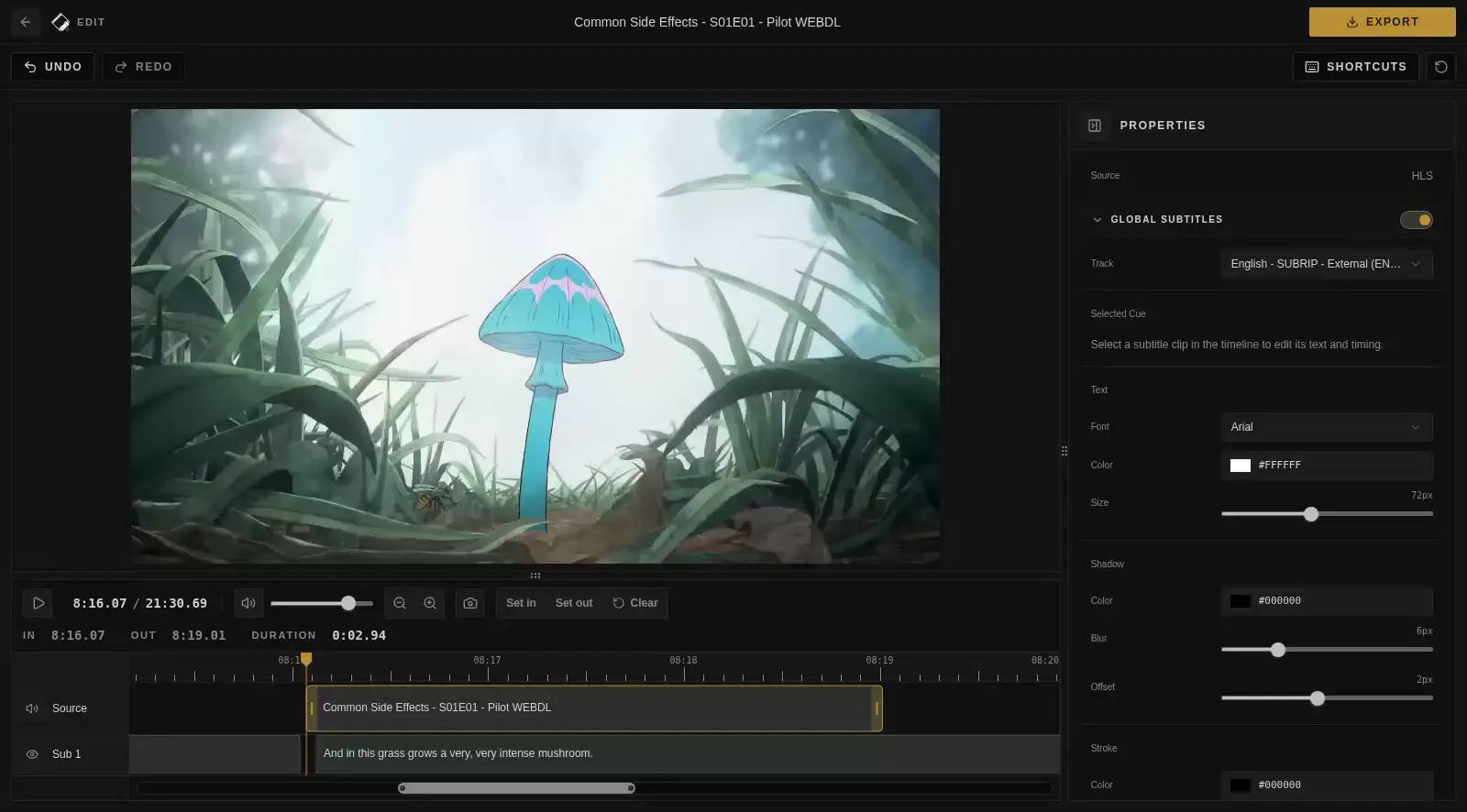
Focused editing
Cliparr keeps the workflow small: find the source, choose the range, export the clip.
Use Cliparr with Plex and Jellyfin, open local videos, tuneexport settings, and burn in supported subtitles without turning your home server into a render box.
01
Follow playback automatically from connected Plex and Jellyfin servers.
02
Clip local files without uploading them. Direct media URLs require provider sign-in.
03
Trim, zoom, and fine-tune your clip range with a familiar non-linear editor.
04
Choose video or audio-only formats, or make a GIF. Exports run in your browser.
05
Keep source details, artwork, and clip timing in supported video and audio containers.
06
Create your own captions or import subtitles, then style and burn subtitles into your clip.
Mobile PWA
Open Cliparr from a phone, install it to your home screen, and keep a focused clipping workspace close to the media you are already watching.
Manifest icons, shortcuts, and standalone display support make the app feel at home outside the browser chrome.
Source selection, playback, and export flows stay reachable on a small screen without losing the desktop workflow.
Cliparr keeps the main interface quick to reopen, then refreshes your media sessions and source details live.
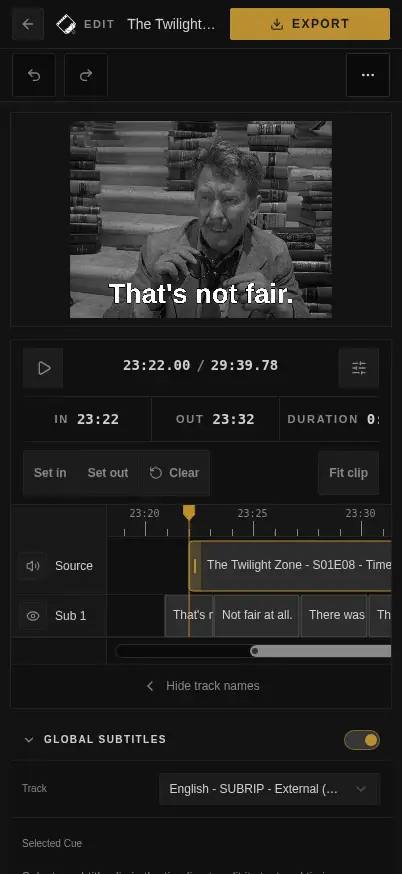
Self-hosted quick start
Self-host Cliparr in Docker, keep your sources connected, and make clips whenever something worth saving is playing.
docker run -d \
  --name cliparr \
  -p 7171:7171 \
  -e APP_KEY="your-32-char-stable-random-secret" \
  -v cliparr-data:/data \
ghcr.io/techsquidtv/cliparr:latestdocker run -d `
--name cliparr `
-p 7171:7171 `
-e APP_KEY="your-32-char-stable-random-secret" `
-v cliparr-data:/data `
ghcr.io/techsquidtv/cliparr:latestSources
Connect a server source for active playback discovery, or open a video directly from your device when you just need a local clip.

Connect your Plex account, choose a server, and clip from active playback sessions.

Connect your Jellyfin server with your account and clip from your active sessions. Administrator accounts can access sessions across the server.
As seen on
Places that have mentioned Cliparr.
Questions
A few quick answers about self-hosting, provider support, browser exports, and where Cliparr Convert fits.
Cliparr processes video in the browser. Local files are read directly by the browser; Plex, Jellyfin, and direct media URL sources can route through your self-hosted Cliparr server's media proxy so the browser can preview and export them.
The server handles media server authentication, encrypted provider records, active playback discovery, and proxy work for media routes. It helps the browser reach authenticated sources, while editing and export processing run in the browser.
No. Cliparr processes video, audio, and GIF exports in your browser. You do not need to install FFmpeg.
Yes. Cliparr can connect to Plex and Jellyfin providers, discover active playback sessions, open the current media, and start clipping from the playback position.
Use Cliparr Convert when you only need whole-file conversion without self-hosting. The hosted converter runs in your browser and is separate from the full Cliparr app for Plex, Jellyfin, local sources, and timeline clipping.